Creating and Testing the Meeting Space

Creating the Layout for the Webinar
When folks enter the meeting space, you want user process to be as self-evident as possible. Steve Krug writes in his book “Don’t Make Me Think” that the main usability rule above all others is just that – don’t make your participants expend extra effort to figure out what’s going on and how things work. He gives five usability tips (in bold) to help ensure that your users will understand as much as possible, and I’ve included brief explanations of each as they apply to setting up your meeting space [1]:
- Create a clear visual hierarchy on each page: What do you want your users to focus on? Make that prominent on the screen and cluster that item with content needed to support it.
- Take advantage of naming conventions: Name buttons, windows and links with obvious titles. What may seem clever to you can prove confusing to your users.
- Break the screen up into clearly defined areas: Define set areas for evergreen (non-changing) content and stick to that format. If you want a chat box to be available to users at any time to ask questions, don’t move it around.
- Make it obvious what is clickable: Make links and buttons prominent and obvious. If you want people to go somewhere or do something, make it self-evident with bold design.
- Minimize noise: Just because you have access to cool tools doesn’t mean that you have to use all of them. Keep your pages focused on the content and don’t add distractions.
Many systems for online presentations give you preformatted templates that align to the standards listed above. However, focusing on these usability points will help for you to design custom layouts that meet user needs, highlight your content in the best way possible, and help you to achieve learning outcomes.
Below, we highlight some of the most popular features available in online presentation software, and give you examples of how they can be included into strong visual layouts.
Common Components of e-Meeting Rooms
Attendee List
Attendee/Participant List
This area offers a list of all of the people present in the meeting, and sometimes lists their role (such as whether they are a host, a presenter or just a participant). Making this information available to participants allows them to better interact with their fellow learners.
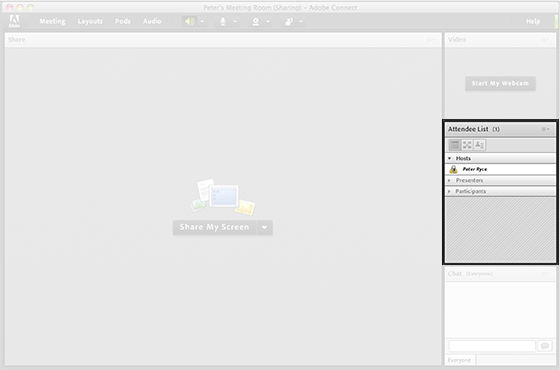
Photo: Gigaom
Chat Area
Chat or Direct Message Area
The chat area is a hub of information during a live session, particularly if microphone use is limited to the presenter(s). Use this space to ask questions of the group, to address your fellow presenters in a private chat, or handle select questions in an individualized one-on-one chat window.
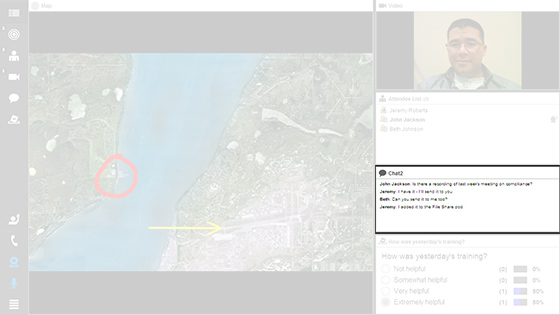
Photo: Adobe Blogs
Share Space
Share Space
The share space is often the heart of most eMeeting software applications in that it lets you display uploaded content (such as PowerPoint presentations or PDF files), websites, videos and screen shares to the entire group of participants. Some programs even allow you to take the screen share feature one step further and share access of the mouse. This is great for demonstrations and troubleshooting where one person can offer feedback directly on another person’s computer.
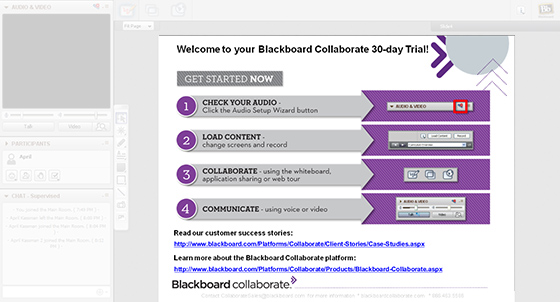
Photo: April’s Instructional Media Discoveries
Whiteboard
Whiteboard
Think of the whiteboard as a transparency sheet over whatever content that you’d like to display – you can draw, write, or annotate on a clear space or over any uploaded file.
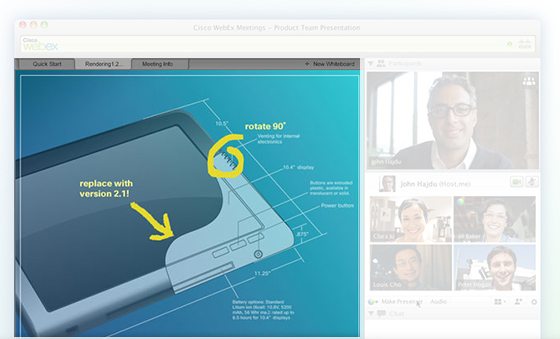
Photo: WebEx
Audio
Audio Controls
Most programs allow you to grant access to individual participants on a granular level, giving them control over their microphone settings if necessary. Additionally, most programs allow for seamless integration with audio conferencing software if you would like to allow users to call in to the presentation.
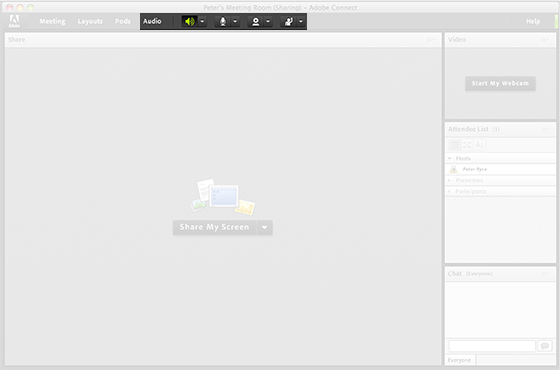
Photo: Gigaom
Video
Single and Multiple Video Feeds
Most eMeeting programs dedicate space for you to bring in video from one or multiple web cams. Below, you see a shot of a meeting held in WebEx, where five simultaneous video feeds are broadcast all at once.
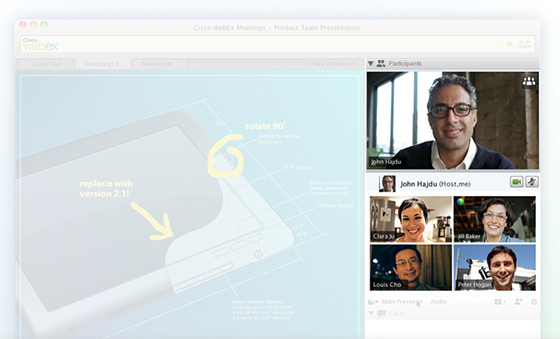
Photo: WebEx
Notes
Discussion Notes
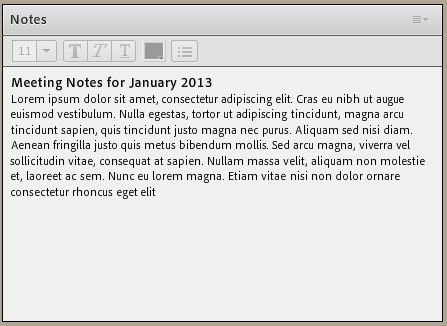
Have one or more participants take notes in real-time to help facilitate collaborative thinking and learning. The notes area is excellent for archival purposes, too, if participants or those who have missed the session would like to see results and takeaways.
Breakout Rooms
Breakout Rooms
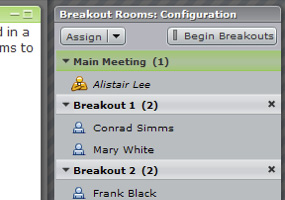 Breakout rooms allow you to divide larger groups into smaller, collaborative teams that have access to their own unique meeting space. Hosts and presenters can move from room to room, while participants can only access the materials in the room that they are in. Many eMeeting applications will split your group up randomly, or you can choose which participants go to which room. When you are finished, you can close the rooms en masse to reconvene the larger group once again.
Photo: Batipi.com
Layout Templates
Layout Templates
Some systems will allow you to save layouts and configurations for later use. As you design your layout, consider making a template that can be reused again. Your audience will respond favorably to consistency, and knowing how you lay things out for any and all webinars that you host is prior knowledge that they will appreciate.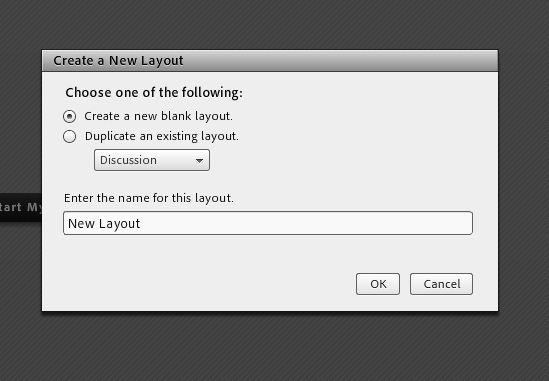
Loading in Content Beforehand
When I give people advice on presenting face-to-face, I always tell them to have as much of their content that relies on technology loaded up beforehand and tested on the system that they’ll be using to give the live presentation. One of the nice features about webinars is that you have the ability to not only load your content into the system well in advance, but you can also test it thoroughly right from the start. You don’t have to worry about unknown technology being utilized for the presentation of your content, such as arriving at a conference room or meeting space and realizing that your presentation is not compatible with the system available. In this way, you have the ability to set up your PowerPoint presentations, websites and software for demos, polls and quizzes, and any engagement activities that you would like to include, embedded into the system and ready for prime time. Keep in mind that this is not much different than preparing for a face-to-face lesson – just as you would get your handouts and resources ready for an in-person class, spend a little time prepping your online meeting room to alleviate the pressure of having to present on the fly.
Choosing Your Broadcast Location

Because webinars take a set amount of bandwidth to stream audio, video and multimedia content in real-time, having a speedy, wired connection can make an enormous difference in terms of picture quality and reliability. Additionally, if you are concerned about sound quality, consider wearing a headset with a microphone. Sure, they can look a nerdy, but comparatively, your sound will come out crisp and clear and use up a lot less bandwidth. There is nothing worse than a session where there’s an echo or feedback, and headsets can help mitigate those instances where multiple audio feeds sounds like a disaster.
If you have options in terms of your camera, mic and broadcast location, take some time to test with a colleague beforehand to ensure optimum delivery quality for the day of the presentation.
Practice Makes Perfect
You might also consider recording your dress rehearsal so that you can play it back and analyze it later. Sometimes it is difficult to gauge the energy level conveyed with the tone of your voice until you hear it for yourself. It can also help to shed light on any slow, confusing or boring spots in the presentation. Be mindful of maintaining a consistent tone throughout the presentation without sounding monotone. Also be mindful of natural speech patterns that may sound funny if you’re not using video – for instance, pausing to reflect on a question over an audio feed can sound as if the audio has been dropped.
Everything is ready for the webinar – now to just get people signed up and ready to go.
- Krug, S. (2006). Don’t make me think. (2nd ed.). Berkeley, CA: New Riders Publishing.↑